

With this update, several significant capabilities have been added to the Neteera System, including multi-signal patient prioritization support, expanded clinical reporting, and an embedded AI assistant.
In Update 2.10
- Attention Notification and List Focus
- Sleep Report
- Patient Current View Report
- RPM Report
- Disconnection Report
- Navi AI Chatbot
- Other Enhancements
Smarter Patient Prioritization
Attention Notification and List Focus
Large patient populations, busy shifts, and overnight hours make it challenging for staff to know which patients need attention first. With this latest release, the Neteera System goes beyond individual vital sign alerts to help care teams quickly identify who may need assessment sooner.
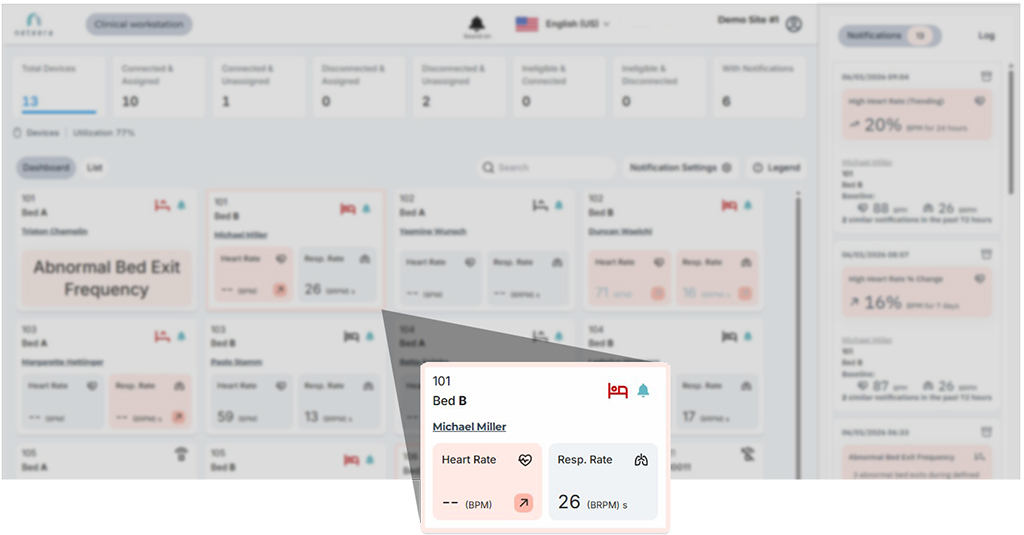
While individual vital sign alerts flag changes in a single parameter, the Attention Notification goes further, evaluating patterns across multiple signals over time, personalized to each patient’s own baseline.
When the Attention Notification is enabled and configured, the system continuously evaluates each patient’s trending heart rate, respiratory rate, physiological patterns, and movement against their individual baselines. When the combined picture suggests that a closer look may be needed, the notification is triggered.
An active Attention Notification is delivered in four places:
1. A light red frame on the patient’s card in the Clinical Workstation dashboard
2. The Current Notifications sidebar
3. Email or text message
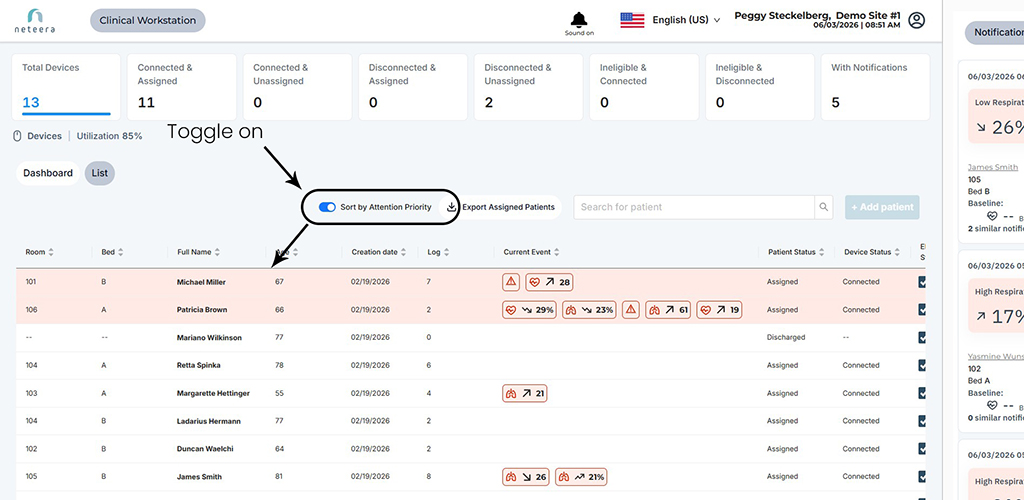
4. The List View, where patients with active notifications sort to the top
Care teams can see what triggered the notification in multiple locations, giving them the context they need to make informed care decisions.
Note: The Attention Notification is designed to support clinical judgment, not replace it. It prompts review and is not a medical alarm.
How It Works
The Neteera System uses AI algorithms informed by data collected across tens of thousands of patients to analyze multiple signals simultaneously across multiple time windows. Each patient is measured against their own dynamic, rolling baseline, not a population average.
A shift that looks unremarkable in the general population may be significant for a specific patient. That’s why the system evaluates each patient’s indicators, sending clinicians relevant alerts to help them personalize care and focus it where it’s needed most.
An Attention Notification activates when a patient’s trending signals across time could indicate elevated risk. Care teams get context on what the system flagged and why by hovering over the alert icon in the List View or on the patient chart.
FAQs
Does the Attention Notification replace any existing vital sign alerts?
No. It works alongside them. Existing notification settings remain in place. The Attention Notification adds a layer of multi-signal pattern analysis on top.
Is each patient compared to themselves or the general population?
Each patient is compared to their own two-week baseline. What’s normal for one patient may not be normal for another. The system accounts for individual variation.
Who configures the Attention Notification?
After the facility administrator or clinical supervisor enables it for a site, it can be configured in Notification Settings.
Does an Attention Notification require immediate action?
Not necessarily, but it deserves prompt attention. It’s designed to support clinical judgment by flagging patients whose signals suggest a closer look may be warranted. It’s not an indicator of an emergency or a specific clinical action, but an assessment is suggested sooner rather than later.
How do I sort the List View for priority?
Activate the toggle in the List View. When on, patients with active Attention Notifications appear at the top with a light red background.
Is this available to all customers?
Yes. The Attention Notification is included in all tiers of the Neteera System.
Objective Insight Into Patient Sleep
Sleep Report
Sleep quality affects recovery, fall risk, and cognitive function, and can signal changes in a patient’s overall condition. Until now, getting a clear picture of how a patient is sleeping meant digging through chart data or relying on staff observation.
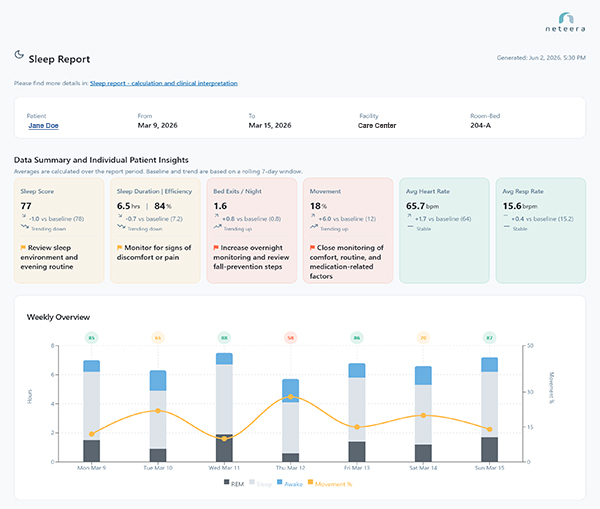
The Sleep Report is an objective, structured analysis of a patient’s sleep data over a rolling seven-night period. It can be exported as a PDF for patient charts, care reviews, or consultations without needing HealthGate access.
The Sleep Report is accessed through the Reports drop-down in the Patient Chart
It includes five areas of insight:
1. Summary Analysis Card
2. Weekly Overview
3. Nightly Breakdown
4. Sleep Movement and Out-of-Bed Heatmap
5. Trending Overview
A user guide on the page provides instructions for reading and downloading the report.
Note: The Sleep Report may require an additional subscription.
How It Works
Sleep data is collected passively and continuously during nighttime hours. The Sleep Report pulls seven nights of data into a structured clinical document with five sections of metrics:
Summary analysis cards display key metrics at the top of the page: Sleep score, duration and efficiency, bed exits, movement, and average heart rate and respiratory rate. Trend indicators and insight messages flag changes that may need more review. The sleep score is a composite score from 0 to 100 based on sleep duration, sleep continuity, physiological quality, and REM sleep.
Weekly Overview visualizes nightly sleep, wake, and REM time, overlaid with a motion percentage line and sleep score, making it easier to identify patterns across the reporting period.
Nightly Breakdown is a night-by-night table with color-coded sleep scores, time in bed, sleep efficiency, movement and REM percentages, bed exit count, and average respiratory and heart rates. This data can be useful for fall prevention planning, toileting schedules, and nighttime care routines.
Sleep Movement and Out-of-Bed Heatmap shows color-coded hourly time blocks for sleep, movement, and out-of-bed events each night. Out-of-bed events are categorized by duration: under 15 minutes, 15 to 30 minutes, and over 30 minutes. This data can be useful for fall prevention planning, toileting schedules, and nighttime care routines.
Trending Overview is a line chart of nightly respiratory rate, heart rate, and motion across the reporting period, with hover-over detail for exact hourly values.
FAQs
Does generating the report require any staff action?
No. Sleep data is collected passively and continuously. Generating the report is a single action from the Patient Chart. To download the report, click the Export to PDF button.
Can the PDF be shared with someone who doesn’t use HealthGate?
Yes. Once exported, the PDF can be shared with clinicians, family members, or other members of the care team.
Does the Sleep Report support fall prevention?
The Out-of-Bed Heatmap shows when patients leave their beds and for how long, which can be useful for nighttime observation schedules and fall prevention planning.
Full Patient Context in a Single PDF
Patient Current View Report
When a patient’s condition changes, the data behind it rarely ends up documented in a structured, shareable way. The Patient Current View Report changes that.
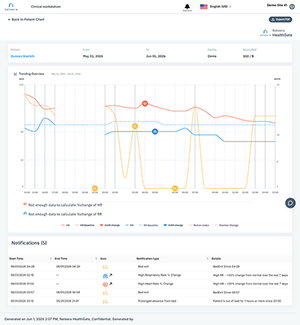
The report pulls a patient’s Trending Overview and Notifications Log for a selected time period into a single exportable, shareable PDF. It brings together the data needed to support a care review or brief a consulting provider.
How It Works
Included in the report data:
- Trending Overview: Respiratory rate, heart rate, and motion, along with direction and percentage of change
- Notifications Log: A list of each alert fired during the period, including notification type, timing, and reason
FAQs
Can the PDF be added to an EHR?
Yes. It can be attached to any system that accepts PDF files.
Does the Notifications Log include the reasoning behind each alert?
Yes. Each entry includes alert type, timing, and the data that triggered it.
Who can generate this report?
Any user with existing access to the Patient Chart.
On-Demand RPM Reimbursement Documentation
RPM Report
RPM reimbursement requires documented longitudinal monitoring data. The RPM Report generates that documentation on demand in a format that billing teams can use directly without compiling data manually.
Available to Group Managers and Group Viewers, reports can be generated for a single site or all sites. The default output is a summary CSV. When the individual data option is enabled, separate PDFs are also generated for each monitored patient.
How It Works
The RPM Report is generated from the Reports tab. Reports can be created for any single completed month or a range of completed months for the last six months. When the report is ready for download from HealthGate, a link is sent by email.
FAQs
Who can generate RPM Reports?
Users with Group Manager or Group Viewer roles in HealthGate.
Can I run a report for multiple sites at once?
Yes. Reports can be generated for a single site or for all sites in your group.
What format is the output?
The report is a CSV by default. When individual patient data is included, a separate PDF is generated per patient.
How long is data available?
Data is available for up to the last 6 months.
How will I know when the report is ready?
An email with a download link is sent when the report has been generated.
Daily Visibility Into Disconnected Devices
Disconnection Report
A disconnected Neteera sensor is an unmonitored patient. In most organizations, disconnections are discovered reactively when someone notices missing data, often hours or days after the disconnection occurred.
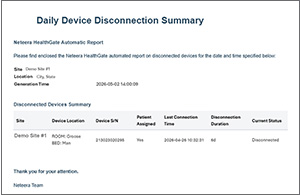
The Disconnection Report is a daily email that lists every disconnected device by site, and includes location, device serial number, and how long the device has been disconnected.
Disconnection Reports are requested and enabled by Neteera.
How It Works
To activate the Disconnection Report, contact Neteera support with your list of intended recipients. Once enabled, the report generates and delivers automatically each day. No further action is required.
The Disconnected Device Summary is an automatically generated email sent daily to users selected by a site’s Neteera System administrator. Each report lists disconnected devices by site, and includes location, device serial number, and how long the device has been disconnected.
FAQs
Who receives the report?
Selected users. Contact Neteera support to configure recipients.
Does it cover all sites?
Yes. Multi-site organizations see disconnected devices across their entire footprint in one daily email.
What information is included?
Site, location, device ID, and how long the device has been disconnected.
On-Screen Answers for HealthGate Users
Navi AI Chatbot
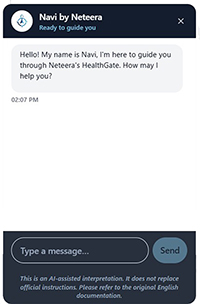
Getting a care team to fully adopt a new platform takes time. In busy care environments, questions that can’t be answered quickly can cause friction that prevents use. Navi helps close that gap.
Navi is an AI assistant available from every screen in HealthGate. Users can ask a question and get an answer quickly, so they aren’t slowed down. No need to wait for a support ticket or training session. Navi has a continuously expanding knowledge base, so answers continue to grow more comprehensive.
Clicking the chat icon in the lower-right corner of any screen starts a conversation with Navi.
How It Works
Start a chat with Navi by clicking the chat icon in the lower-right corner of every HealthGate screen. It draws from the HealthGate user manual to answer questions about navigating the platform, understanding reports, and configuring settings. Neteera expands its knowledge base over time, so Navi’s answers become more comprehensive.
FAQs
What can’t Navi answer?
Navi isn’t a clinical decision support tool and doesn’t answer questions about patient data or analyze it. Navi is there to help users navigate and use HealthGate.
Does Navi replace the user manual?
No. It’s a faster way to find answers that are already in the user manual. The user manual remains the authoritative source.
Is Navi useful after initial onboarding?
Yes. It’s designed as an ongoing resource that is useful any time a staff member encounters a new feature, returns from leave, or needs a quick refresher without pulling a colleague away from patient care.
The Neteera device should be used only as specified in the Instructions for Use (IFU) and according to its intended use.
Already a Neteera HealthGate user? Full documentation is available from the dashboard.
New to Neteera? Find out how the Neteera System closes the distance between patients and the care teams watching over them.